 Debtless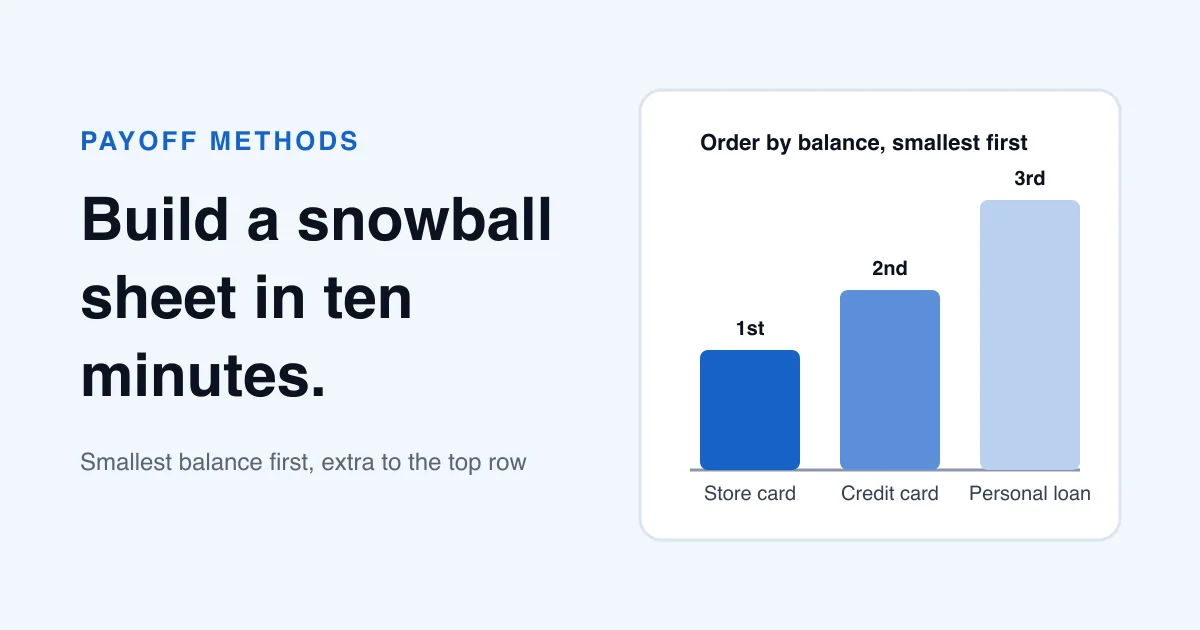
The short answer
A debt snowball spreadsheet lists each debt on its own row, sorts the rows from smallest balance to largest, and works out each month's payment in that order. Every open debt gets its minimum, and the rest of the monthly budget goes to the top open row. The build needs one input sheet, one SORT formula and three calculated columns for interest, payment and balance after payment, and it takes about ten minutes once the balances are typed in.
Which columns does the input sheet need?
Create a sheet called Inputs with four headers in row 1: Debt, Balance, APR % and Minimum. Enter one debt per row, starting in row 2. In cell F1 type Extra per month, and in F2 type the amount you can send beyond the minimums. Every number on the planning sheet comes from this one, so keep the balances current from your latest statements.
| Cells | What goes there |
|---|---|
| A2:A4 | Debt name |
| B2:B4 | Current balance |
| C2:C4 | APR as a percentage, such as 26.99 |
| D2:D4 | Minimum payment |
| F2 | Extra money per month, beyond the minimums |
This example uses three debts: a store card at $420 and 26.99%, minimum $35; a credit card at $1,650 and 21%, minimum $55; and a personal loan at $3,100 and 12%, minimum $95. The extra is $100.
How does one SORT formula order the debts?
On a second sheet called Plan, type a single formula into cell A2. In Google Sheets use =SORT(Inputs!A2:D4,2,TRUE). In Excel 365 use =SORT(Inputs!A2:D4,2,1). The 2 sorts by the balance column, and the last argument asks for ascending order. The formula fills A2:D4 from smallest balance to largest, so the Plan sheet reorders itself when a balance changes on Inputs. Type balances on Inputs only, because anything typed into those Plan cells will block the formula from filling.
Sorting by balance is what makes the method a snowball. Debt snowball vs. avalanche: which debt goes first? covers why the method sorts by balance rather than by rate.
What do the interest and payment formulas look like?
Set up three more columns in row 2 of the Plan sheet, then copy them down through row 4. The references are relative, so each row reads its own balance and minimum.
- E2, interest this month: =B2*C2/1200. Dividing by 1,200 handles both the percentage and the twelve months.
- F2, payment this month: =IF(B2<=0,0,MIN(B2+E2,$I$2-SUM(F$1:F1)-SUMPRODUCT((B3:B$5>0)*D3:D$5))). A cleared debt pays nothing. An open debt pays the smaller of what it owes and what is left of the budget after the payments above it and the minimums still owed below it.
- G2, balance after payment: =MAX(0,B2+E2-F2).
- I2, monthly budget: =SUM(D2:D4)+Inputs!F2. The budget counts every minimum, so a minimum from a cleared debt stays in play and moves down the list.
- Copy E2:G2 down to row 4. Leave row 5 empty so the SUMPRODUCT range does not pick up stray values.
How do you check the first month by hand?
Run the first row yourself before you trust the sheet. The store card sits at the top with a $420 balance at 26.99%, so its interest is $420 times 26.99, divided by 1,200, which is $9.45. The budget is the three minimums, $35, $55 and $95, plus the $100 extra, for $285. Nothing sits above the store card, and $150 of minimums are owed below it, so it pays $285 minus $150, or $135. Its balance after the payment is $420 plus $9.45 minus $135, or $294.45.
If your sheet shows $135 and $294.45 in the store card row, the logic is working. The credit card row should show a $55 payment: $285 less the $135 above it, less the $95 still owed to the personal loan, leaves exactly $55. The Debt Payoff Calculator runs the same kind of month-by-month projection, so you can compare its month count with the one your sheet gives.
How do you keep the sheet current each month?
After each statement, type the new balance for every debt into the Inputs sheet beside its name. The sort, the payment column and the budget update on their own. A debt that reaches zero stays in its row with a balance of 0, so its minimum remains in the budget and moves down to the next open debt. If you change the extra amount, change Inputs!F2, and the budget follows. If you are still choosing a first target, how to start a debt snowball with your smallest balance covers that step.
Worked example · illustrative numbers
Example: three debts, $100 extra, cleared in 21 months
| Month | Store card | Credit card | Personal loan |
|---|---|---|---|
| 1 | $294.45 | $1,623.88 | $3,036.00 |
| 4 | $0.00 | $1,443.32 | $2,840.13 |
| 5 | $0.00 | $1,278.58 | $2,773.53 |
| 13 | $0.00 | $0.00 | $2,068.71 |
| 21 | $0.00 | $0.00 | $0.00 |
Balances after each month's payment, on a $285 budget. Total interest over the 21 months is $693.69. In month 4 the store card's last $35.59 clears it, and the same month sends $154.41 to the credit card, so no money waits a month.
Put this into practice with Debtless
Debtless does this ordering for you on the Plan tab, with Snowball, Avalanche, Cash Flow and Custom orders and an extra-payment slider. The free iPhone app keeps your balances on your device and needs no account or bank link. A spreadsheet gives you more control over the layout, while the app takes the formula work off your hands.

Common questions
Why sort by balance instead of APR?
Sorting by balance is what makes this a snowball. The avalanche method sorts by APR instead. In the SORT formula, change the 2 to a 3, which points at the APR column, and the same sheet becomes an avalanche.
Why does the sheet divide APR by 12 when card interest is calculated daily?
The CFPB notes that many card companies calculate the interest you owe daily, based on your average daily balance. A monthly estimate is close enough for planning, and it will differ from a statement by a few dollars. When the two disagree, use the statement figure.
What happens if I add a fourth debt?
Enter it on the Inputs sheet, extend the SORT range to match, and copy the three calculated columns down one more row. Keep one empty row below the last debt so the SUMPRODUCT range stays clean.
Can I use the sheet for a promotional 0% balance?
Yes. Enter 0 as the APR and the interest column returns 0. Check the promotional end date on your statement, because the rate may change when the promotion ends, and update the APR cell when it does.
Sources & further reading
General education for U.S. readers, not individualized financial, legal or tax advice. Examples are hypothetical; lender terms and actual interest calculations can differ. Check your current statements and agreements.
Published by Debtless with AI-assisted drafting. How this journal is made · Suggest a correction